The Archived Asset List is located under the second tab of the Asset List page. This view provides a tabular record of every asset that has been moved out of the active tree. Filtering the Archived Asset Tree To find...
The Asset List organises your asset data into a comprehensive table, allowing for easy comparison and data management. By default, the table provides a broad overview with the following columns: Navigating Large Data Sets Because the table contains extensive information,...
The Asset List provides an alternative view of your organisation’s assets in a clear, filterable table format, offering similar details to the Asset Tree. The Asset List is accessed by clicking Asset List under the Assets heading on the main...
The Archived Asset Tree allows you to view and interact with assets that have been removed from the main active hierarchy. To access the Archived Asset Tree, navigate to the Assets > Asset Tree section of the main menu. Click...
When you click on an asset to open its detailed menu, a set of options are displayed along the top of the page, where the asset’s name is visible. The available options vary depending on the asset’s level in the...
The Settings tab within the asset menu is where you manage specific configurations for the currently selected asset. The following settings can be amended here: Asset Logo, Default Asset Role and Asset Profile. Asset Logo This setting allows you to...
Schedules The Schedules tab, located in the menu for your selected asset, displays information about assessments that have been planned or set up against this asset. The majority of the data presented on this page is informational only. It provides...
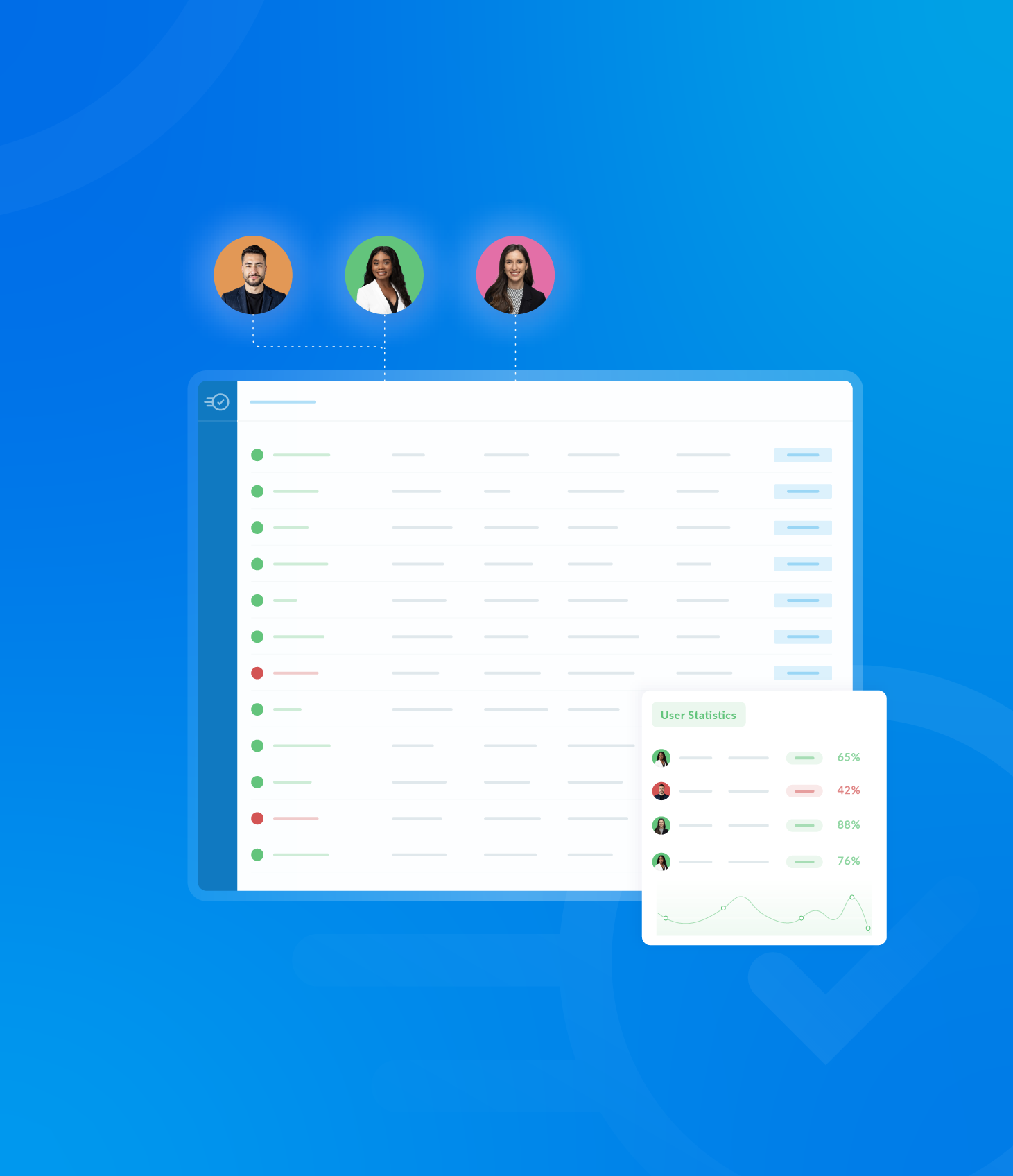
The Analytics tab within the asset details panel is dedicated to displaying performance data and statistical insights related to the selected asset. It is organised into three subtabs: Assessment, Non-Conformances and Tasks. Assessment The Assessment subtab provides a snapshot of...
Every level of the Asset Tree, whether its a top level parent asset or a child asset, is interactive. Clicking on any asset will open a detailed information panel to the right hand side of the main page. This panel...
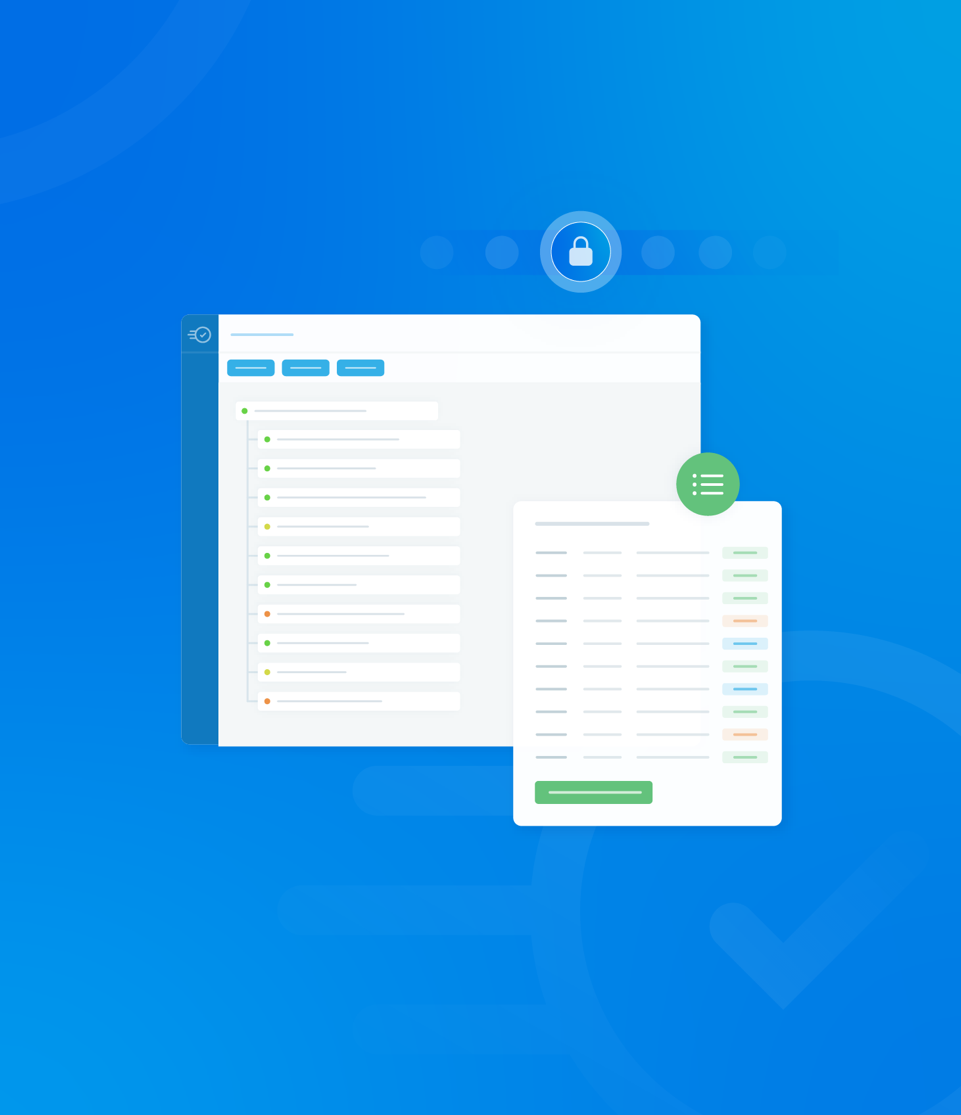
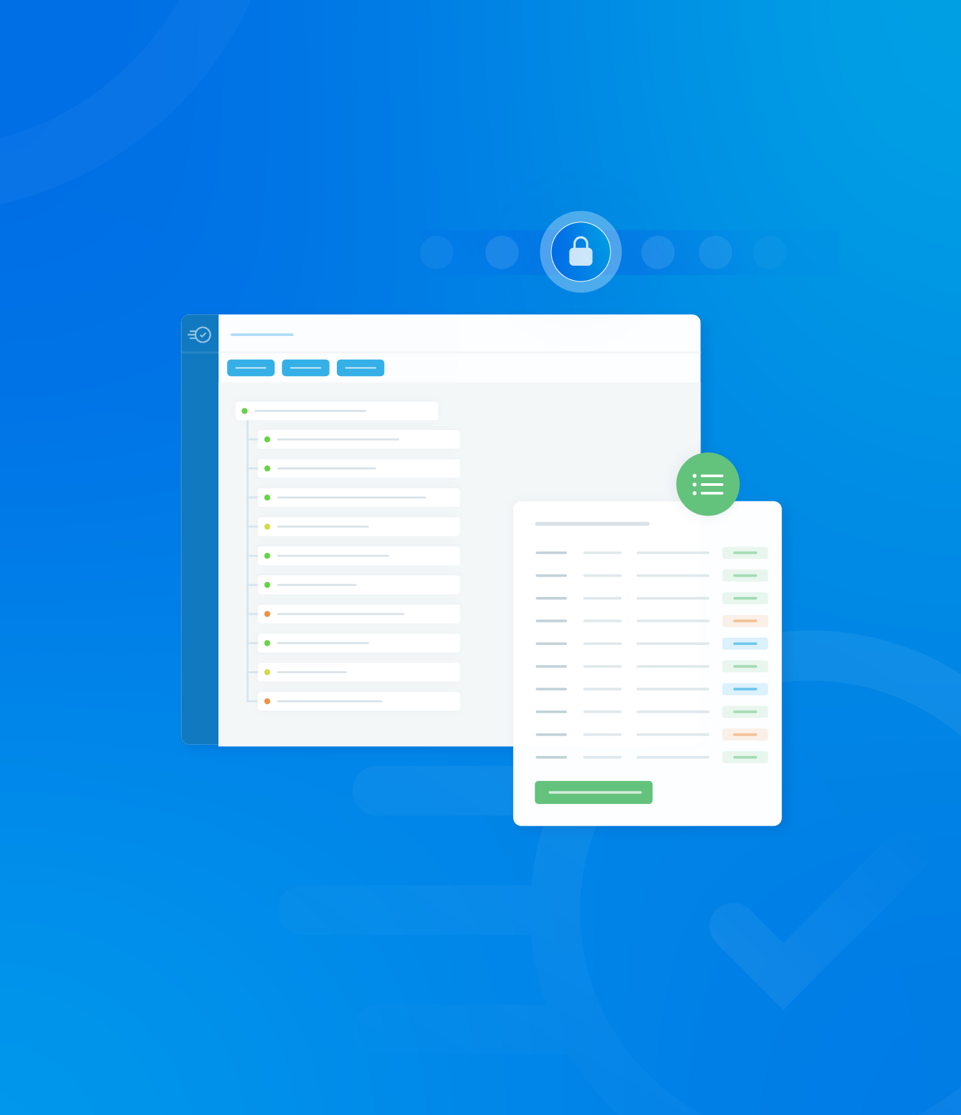
The Asset Tree is the hierarchical structure that displays all assets registered with your organisation. It is designed for easy navigation and management of complex asset relationships. The Asset Tree can be found under the Assets section, located on the...