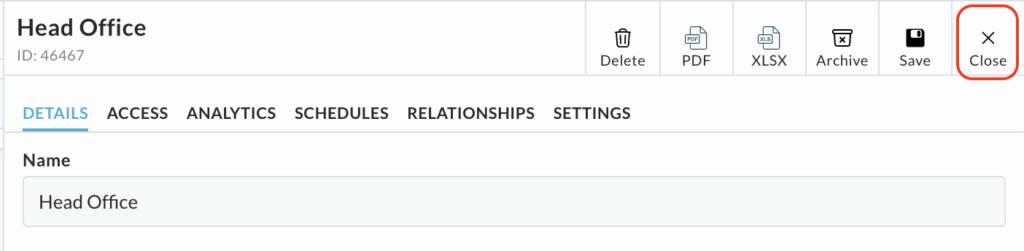

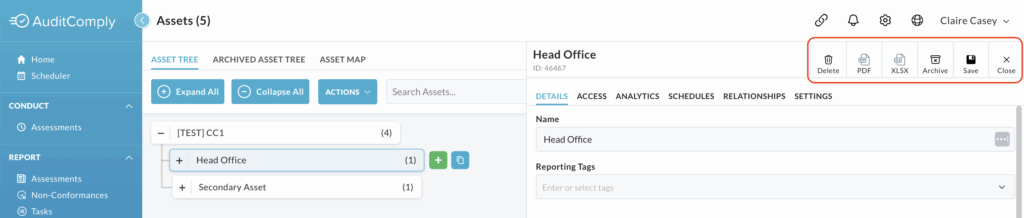
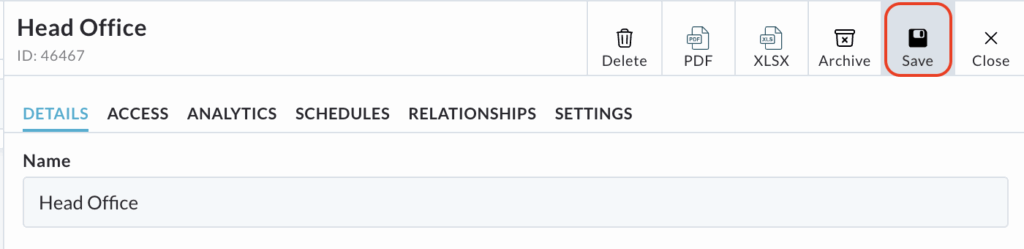
When you click on an asset to open its detailed menu, a set of options are displayed along the top of the page, where the asset’s name is visible. The available options vary depending on the asset’s level in the tree.
Options available include: Delete, PDF, XLSX, Archive, Save and Close.
Delete
This option permanently removes the selected asset from your Asset Tree.
This option is not available for the top-level, organisational asset.
For all lower level assets, you cannot delete the asset if it, or any of its child assets, have active schedules or risk assessments attached to them.
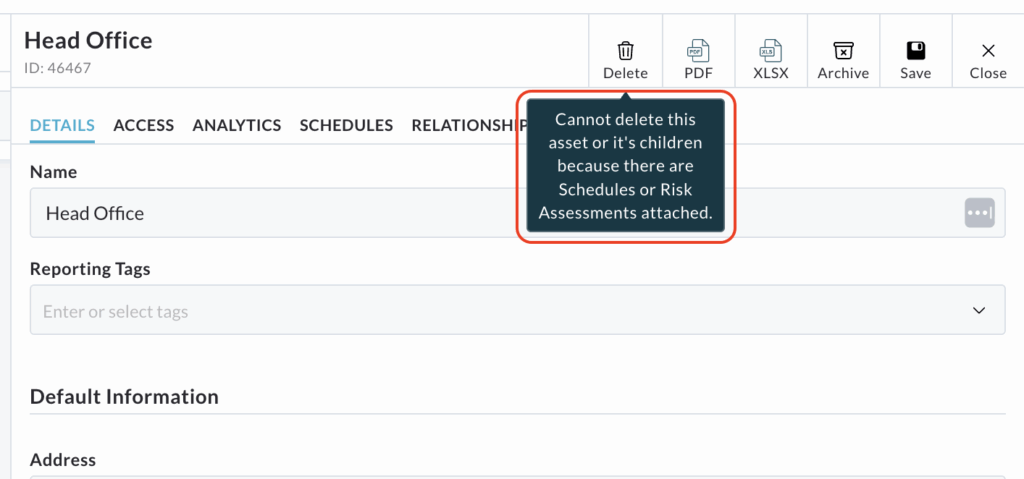
If the asset is eligible for deletion (no active items), click the Delete icon at the top of the menu page.
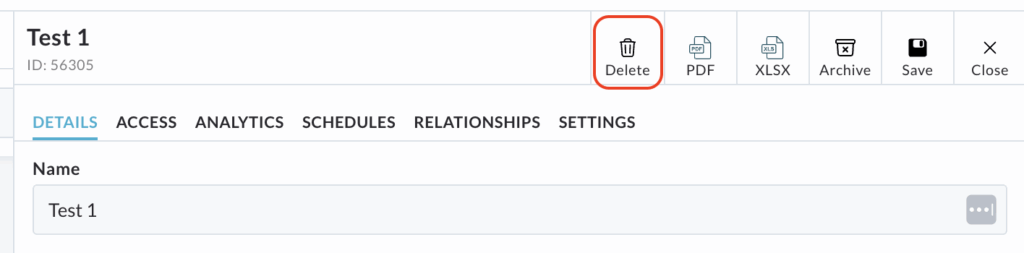
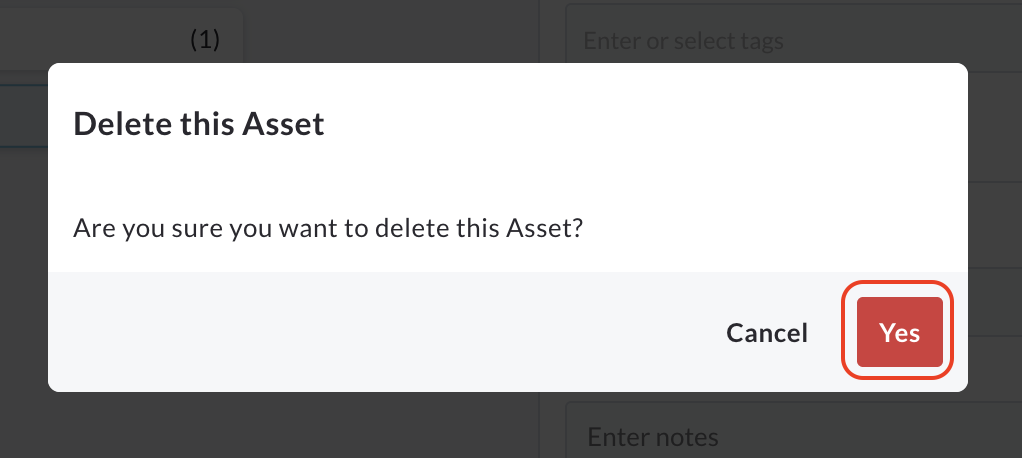
A pop up window will appear, asking you to confirm that you want to delete this asset.
Click Yes to confirm.
The selected asset, along with all of its child assets, will be permanently removed from your asset tree.
Deletion is irreversible.
Clicking the PDF button performs an immediate export of the selected asset’s position within the Asset Tree.
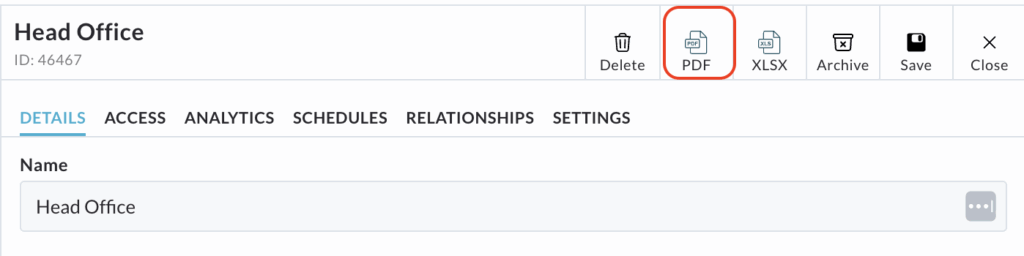
It will immediately open a new window in your browser, displaying the PDF document that shows your selected asset and its hierarchy (similar to the view you have on screen).
From this window, you have the standard options to download, share or print the PDF document.
XSLX
Clicking the XSLX button initiates an export of the asset data in a spreadsheet format.
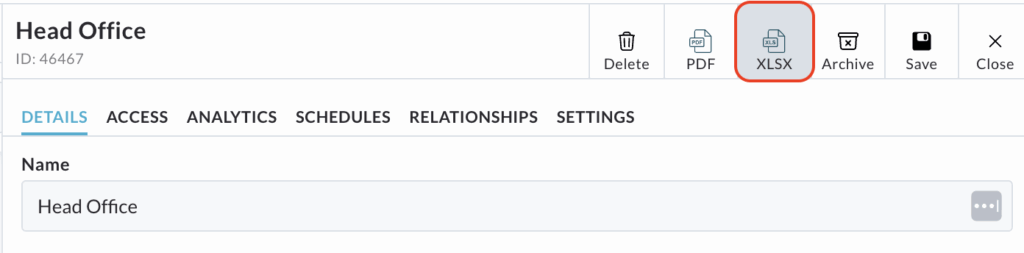
It will automatically download an XLSX file (a standard Excel file) to your computer.
You can then view the data in a spreadsheet program, as well as share or print the file.
Archive
The Archive button, available in the top menu of the asset detail page, provides a way to remove the selected asset and its subordinate child assets from the main Asset Tree, while retaining the data on the system for potential future recovery.
You cannot archive the top level, organisational asset.
You cannot archive any asset that currently has active schedules or risk assessments attached to it.
Click the Archive button.
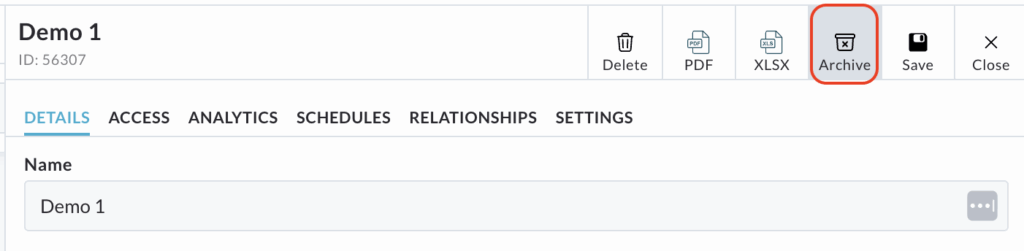
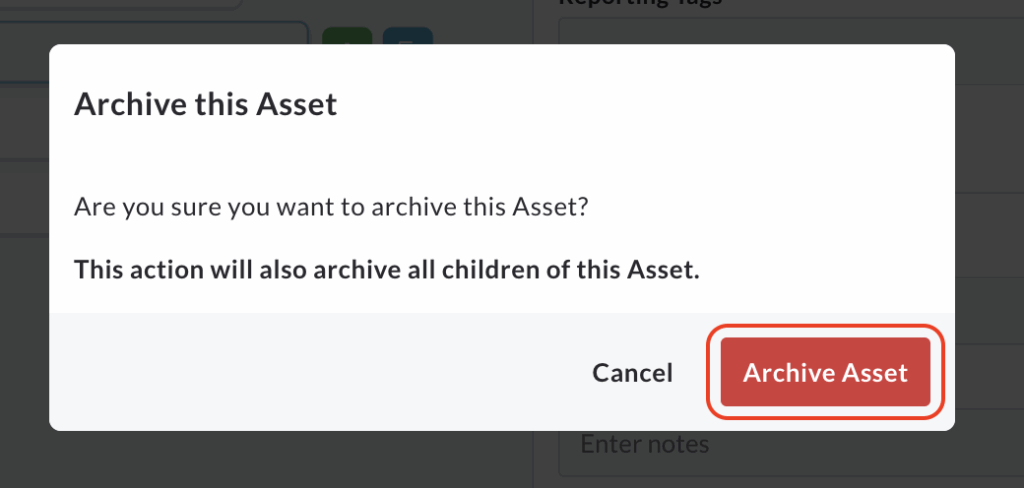
A pop up window will appear, asking you to confirm that you want to archive the selected asset and all its children.
Click Archive Asset to confirm the action.
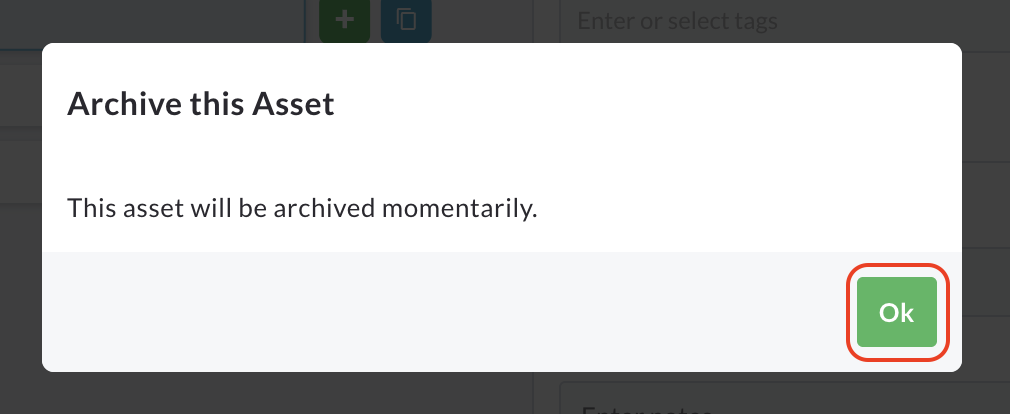
A subsequent pop up will confirm ‘The asset will be archived momentarily’.
Click Ok to close the notification and continue working.
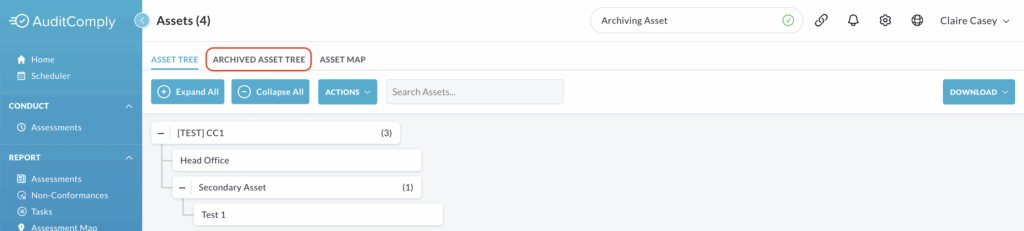
The asset will be removed from the primary Asset Tree and relocated to the Archive Asset Tree tab, where it remains available for viewing and restoration.
Save
It is essential to remember that you must click the Save button, located in the top menu, after making any changes within any of the assets subtabs.
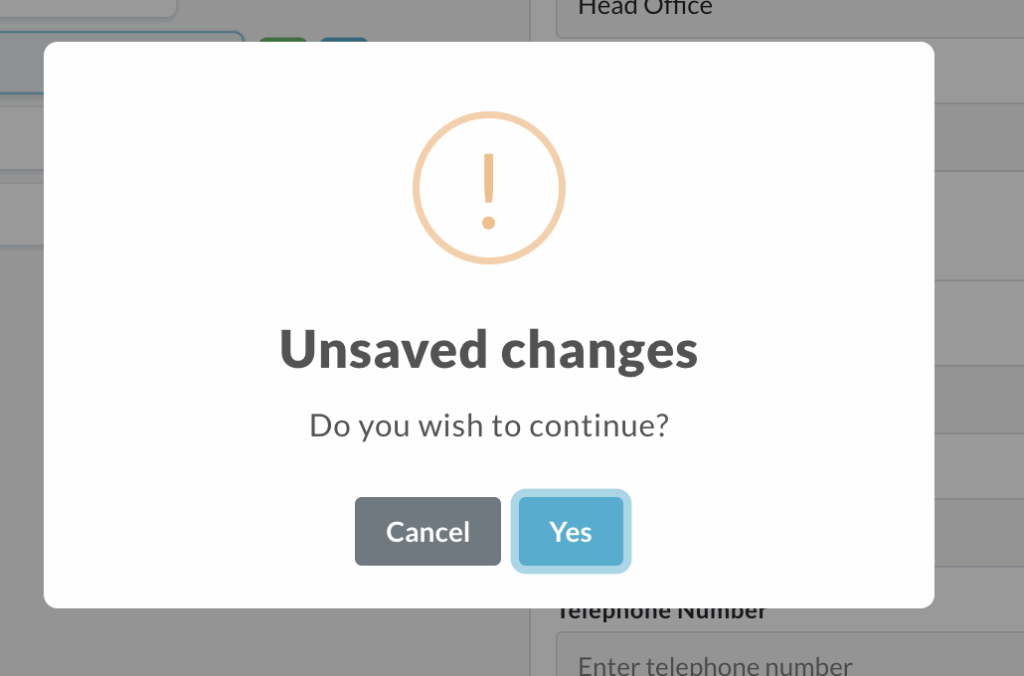
If you attempt to navigate away from the asset page without saving your changes, the page will prompt you to save your work before leaving.
Close
The Close button provides a simple way to exit the asset’s detailed menu.
Clicking Close simply closes the individual asset menu, returning the main screen view to show only the Asset Tree.