
The Asset List provides an alternative view of your organisation’s assets in a clear, filterable table format, offering similar details to the Asset Tree.

The Asset List is accessed by clicking Asset List under the Assets heading on the main side menu.

Filtering the Asset List
The Asset List offers several filtering options to refine the displayed data. Filters are applied using dropdown menus located along the top of the table.

| Filter Option | Description | How to Use |
| Asset | Filters by specific assets or groups of assets. | Select from the dropdown menu. Use the + icon next to parent assets to view and select child assets. Checking the box beside required assets updates the table automatically. |
| Asset Profile | Filters the table based on the assigned Asset Profile. | Select the required Asset Profiles from the dropdown menu. The table automatically updates. |
| Default Contact | ||
| Asset Manager | Filters the list by the user assigned as the Asset Manager. | Check the box beside the name of the required Asset Manager(s) from the list. The table automatically updates. |
| Asset Tag | Filters the table by specific tags assigned to individual assets. | Check the required tags from the dropdown list. The table automatically updates. |
Clearing Filters
To remove all applied filters and restore the table to its default, complete view, click the Clear button located at the end of the filter row.

Location Map
The Asset List page allows you to integrate a visual Location Map directly into your view, providing a geographic overview of your asset distribution.
Activating the Map
To enable the map, check the box labelled Location Map at the top of the page.

Once enabled, the map will appear above the Asset List table but below the filter options.
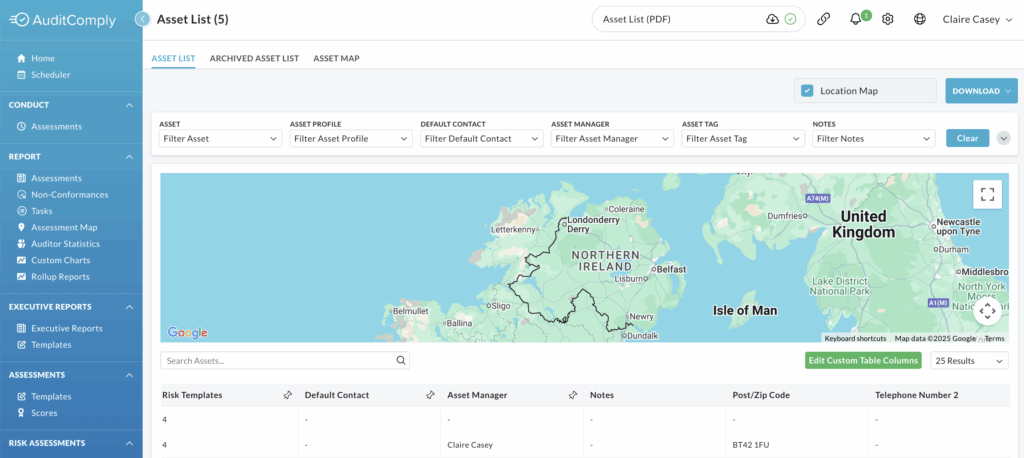
The map displays markers for all assets currently included in your filtered list that have registered locations.
Navigating the Map
You can zoom in or out to view specific sites or get a global perspective of your assets.
Hovering your cursor over the map will reveal directional arrows to move the view or an option to expand the view to a full map format.
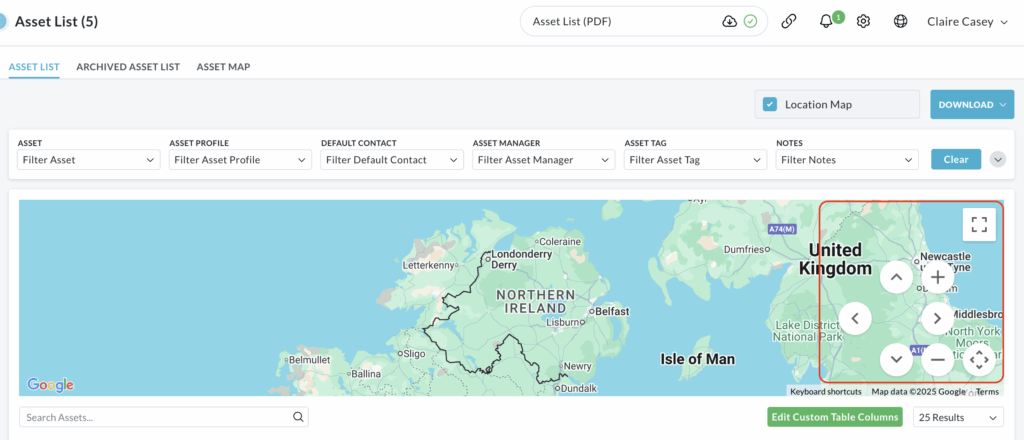
The map is dynamic; if you change your filters in the Asset List, the map will automatically update to show only the locations of the newly filtered assets.
Disabling the Map
To remove the visual map and return to a table-only view, simply uncheck the box beside Location Map.