
The Archived Asset List is located under the second tab of the Asset List page.
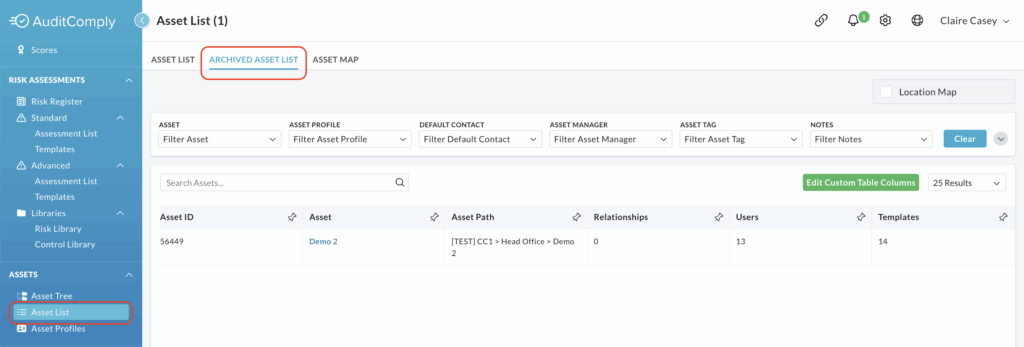
This view provides a tabular record of every asset that has been moved out of the active tree.
Filtering the Archived Asset Tree
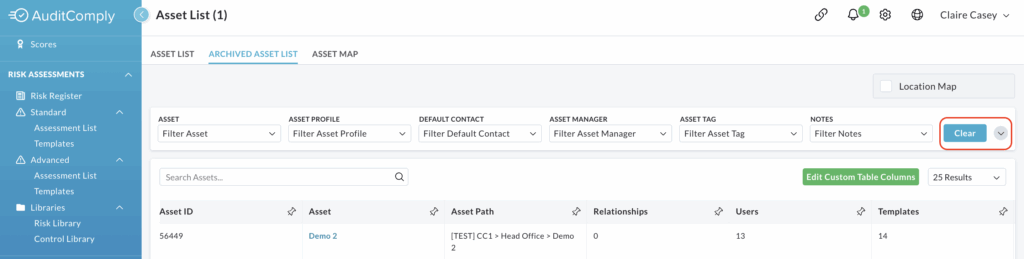
To find specific archived items quickly, you can use the dropdown filter menus located along the top of the row.
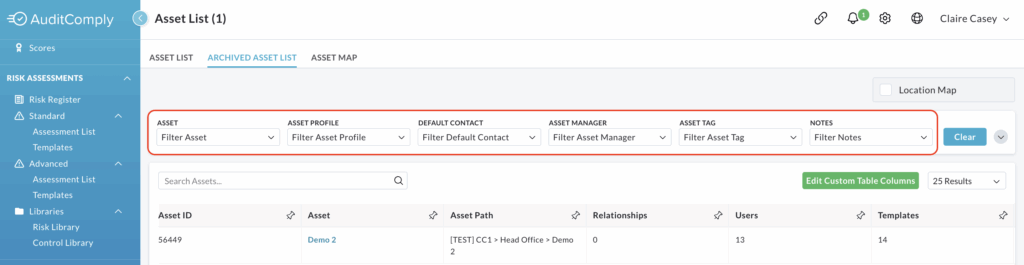
The list can be filtered by:
- Asset
- Asset Profile
- Default Contact
- Asset Manager
- Asset Tag
- Notes
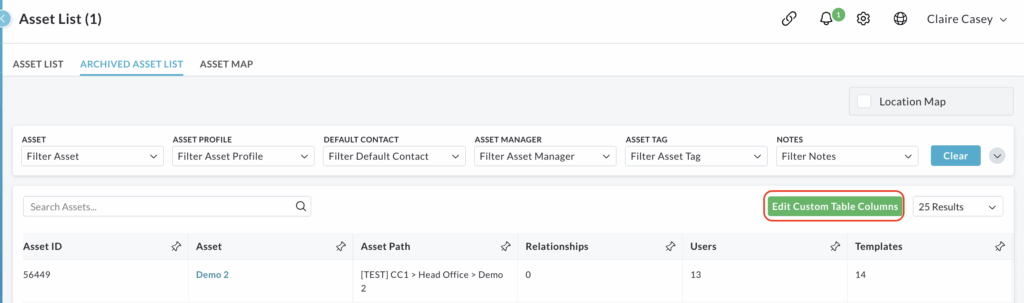
If additional columns are added to the table, these new columns will be added to the filter options and can be viewed by clicking the downward pointing arrow beside the Clear button.

Selecting any option from these menus will automatically update the list.
To reset your view and remove all active filters, click the Clear button at the end of the row.
Location Map
You can visualise the geographical distribution of your archived assets using the integrated map feature.
To enable, check the box in the top right hand side of the page to display the Location Map.
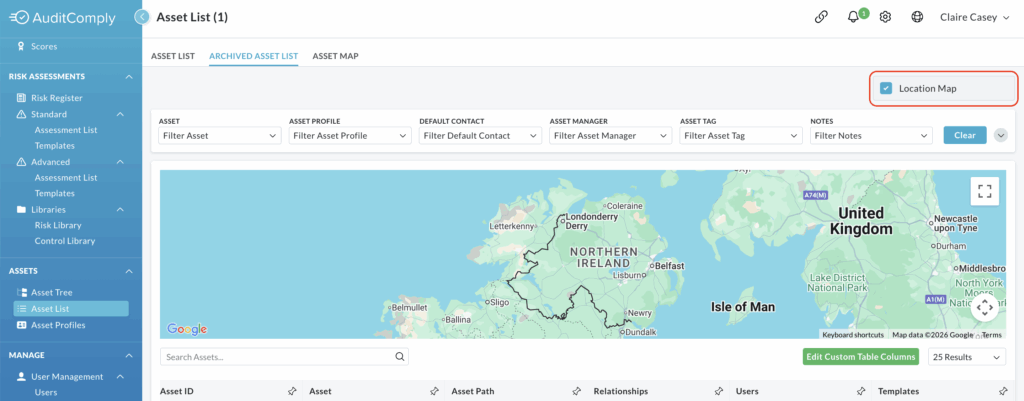
To disable, uncheck the box to remove the map from your view.

Edit Custom Table Columns
Just like the main list, the Archived Asset Table can be customised to show specific data points.
Please Note: These column settings are shared. Amending the columns in the Archived Asset List will also change the layout on your main Asset List.
Adding Columns
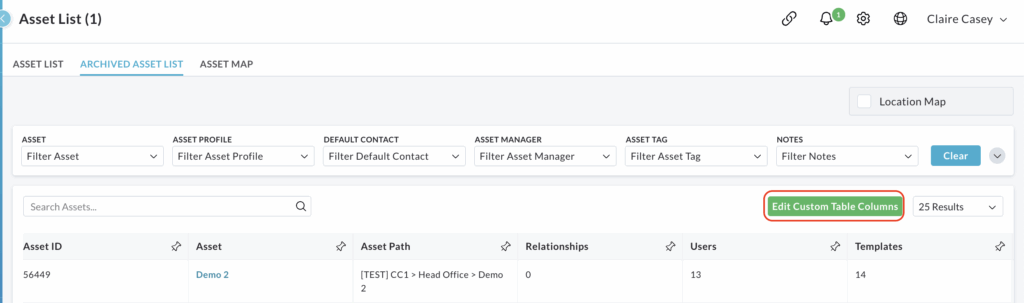
Click the Edit Custom Table Columns button.
A menu will slide open on the right hand side of the page. This menu list all the available data fields you can display.
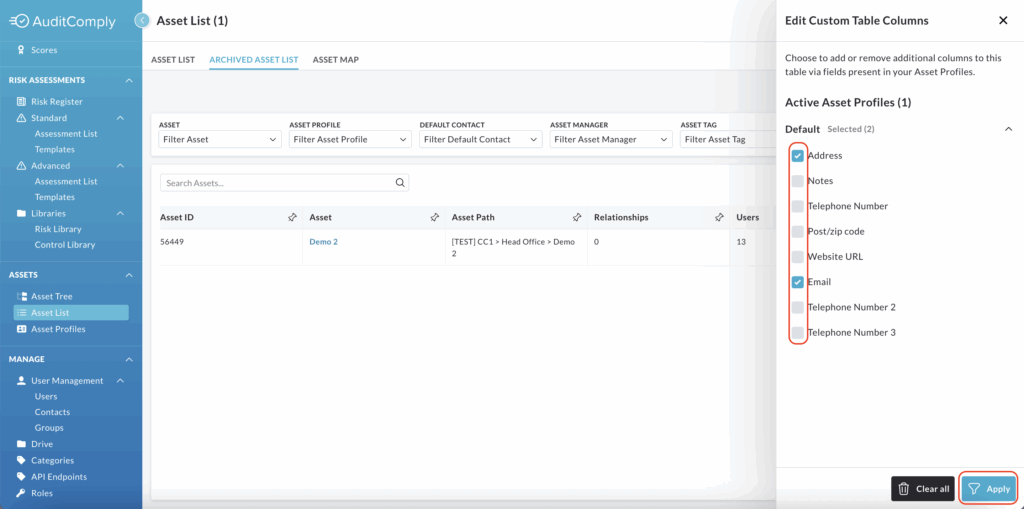
Check the box beside each item you wish to add as a new column.
Click Apply.
Please note: Any new columns will be added to the far right end of the table.
Removing Columns
Click Edit Custom Table Columns again to open the right hand menu.
Uncheck the boxes you no longer wish to see in your table.
Alternatively, you can click All Clear at the bottom of the menu to remove all custom added columns at once.
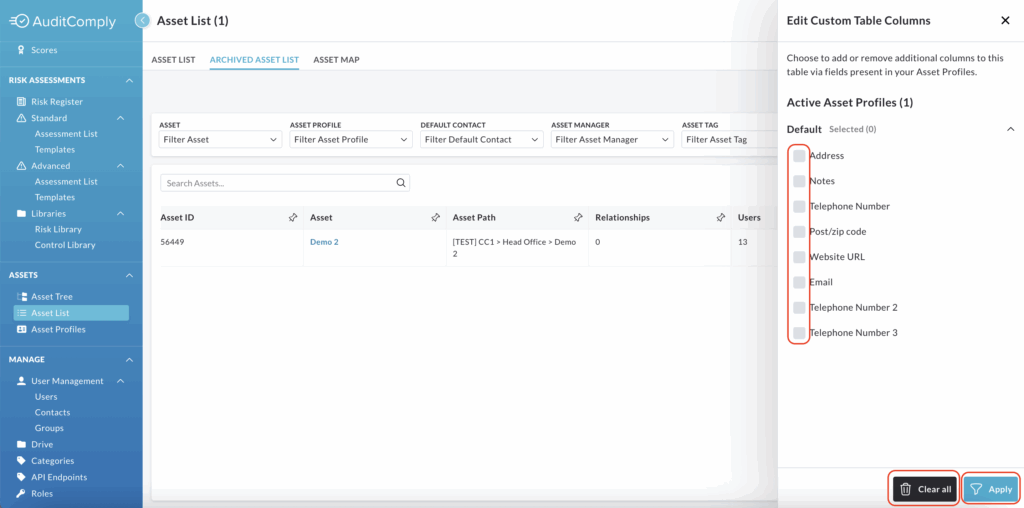
Click Apply to update the table view and remove the selected columns.
Navigating Large Data Sets
As the Archived Asset List table contains extensive information, it may exceed the width of your screen.
To view all available columns, utilise horizontal scrolling to navigate to the right.
Each column has a Pin Icon.
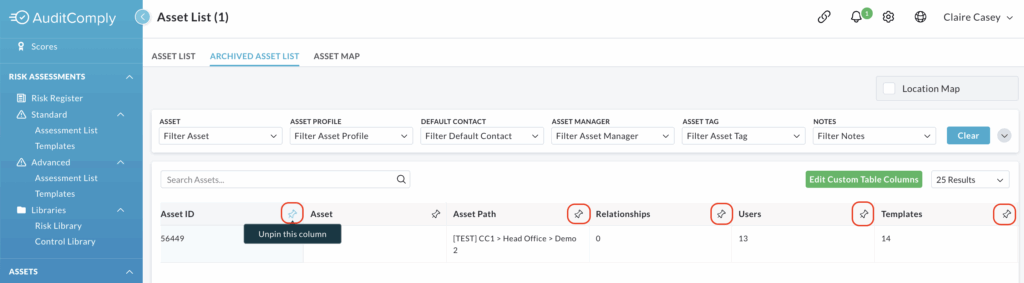
Clicking this icon locks that specific column to the left hand side of the screen. This allows the pinned information (such as Asset Name) to remain visible as you scroll right, making it easier to cross reference data across the entire row.